


ADDING A THUMBNAIL AND MAIN IMAGE TO PORTAL SERVICES AND SHOPS
We encourage you to add a Thumbnail and Main Image to your Services and Shops.
What's the difference between a Thumbnail and Main Image?
The Thumbnail image is the small image that appears on the Service and Shops Landing Pages
The Main Image is the larger image that appears on each individual Service/Shop page.
Thumbnail Image
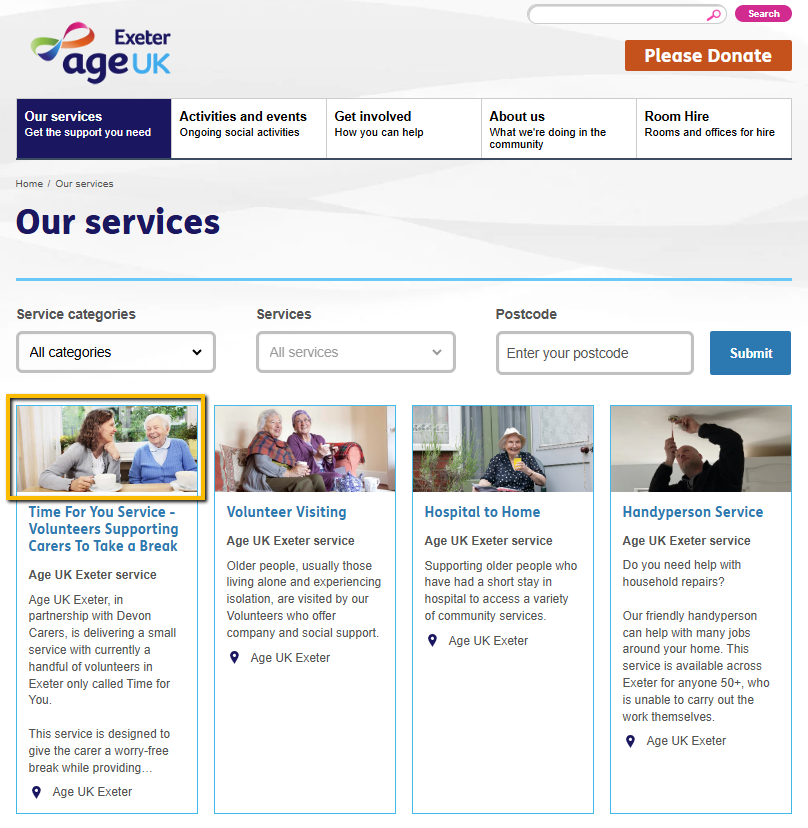
Main Image

1. Before uploading your image to the CMS, make sure that it is the correct size according to its use using our Image Size Reference Guide.
2. Log-In to the CMS and upload your Image to your Media Folder
You can do this by dragging and dropping into the Cloud symbol, or manually upload them by clicking on the + Symbol.
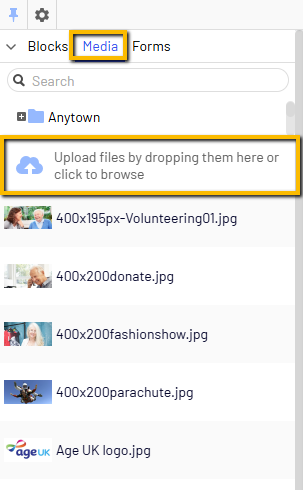
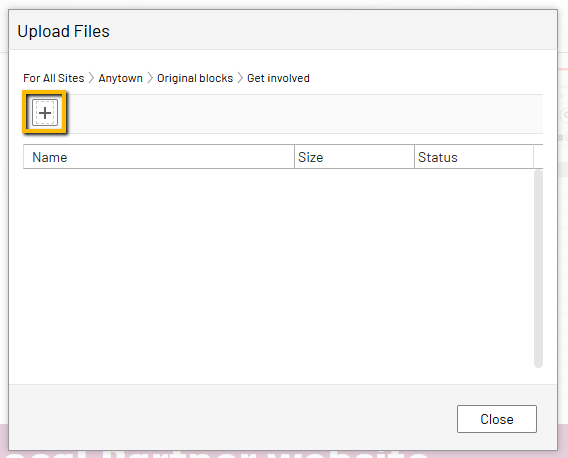
2. Once your Image has been uploaded, you need to copy its URL by following these steps:
- Go to the Media Tab in the CMS
- Use the + signs to locate the desired Image that you just uploaded (you may have to do a bit of digging!)
- Once you have located it, double click the file, and the URL should pop up in the middle section
- If it doesn't, ensure that your viewing mode is set to "On-Page Editing" (highlighted in green next to the Options tab)
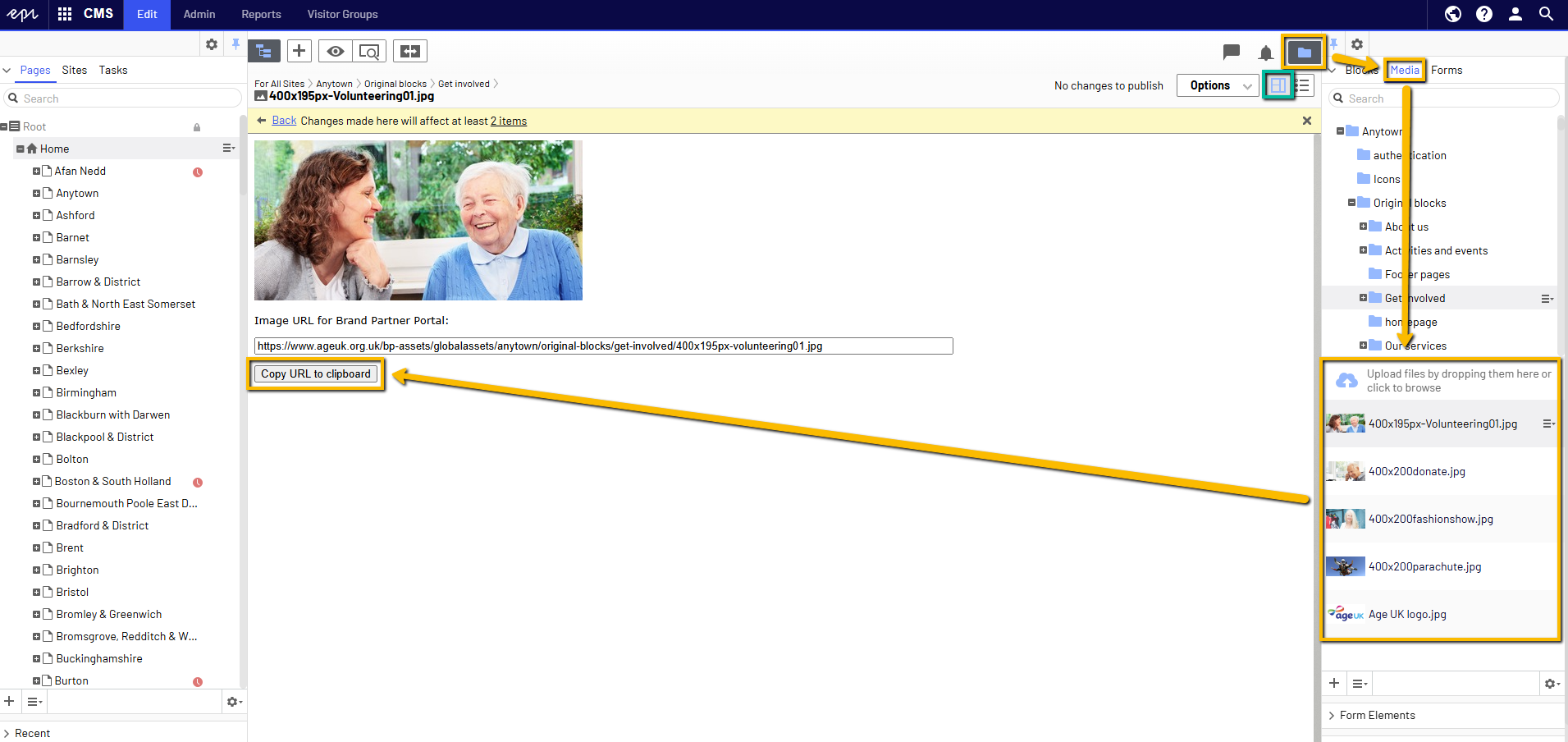
3. Once you have copied the Image URL, paste it into either the Main Service URL or Thumbnail Image field.
