UPLOADING A DOWNLOADABLE MICROSOFT WORD DOCUMENT TO A PORTAL PAGE
If you want visitors to your Website to be able to download a Microsoft Word Document (e.g. a referral form) when they click on a link, this guide will walk you through how to do so.
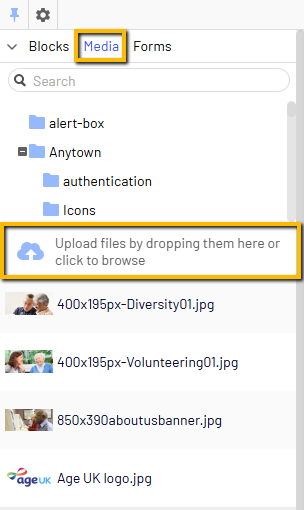
1. Log-In to the CMS and upload your Word Document to your Media Folder
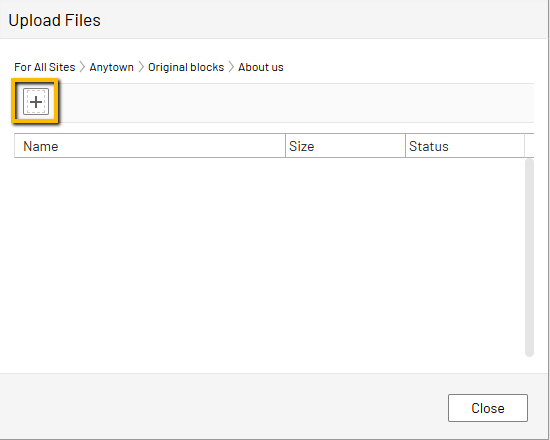
You can do this by dragging and dropping into the Cloud symbol, or manually upload them by clicking on the + Symbol.
2. Once your Word Document has been uploaded, you need to copy its URL by following these steps:
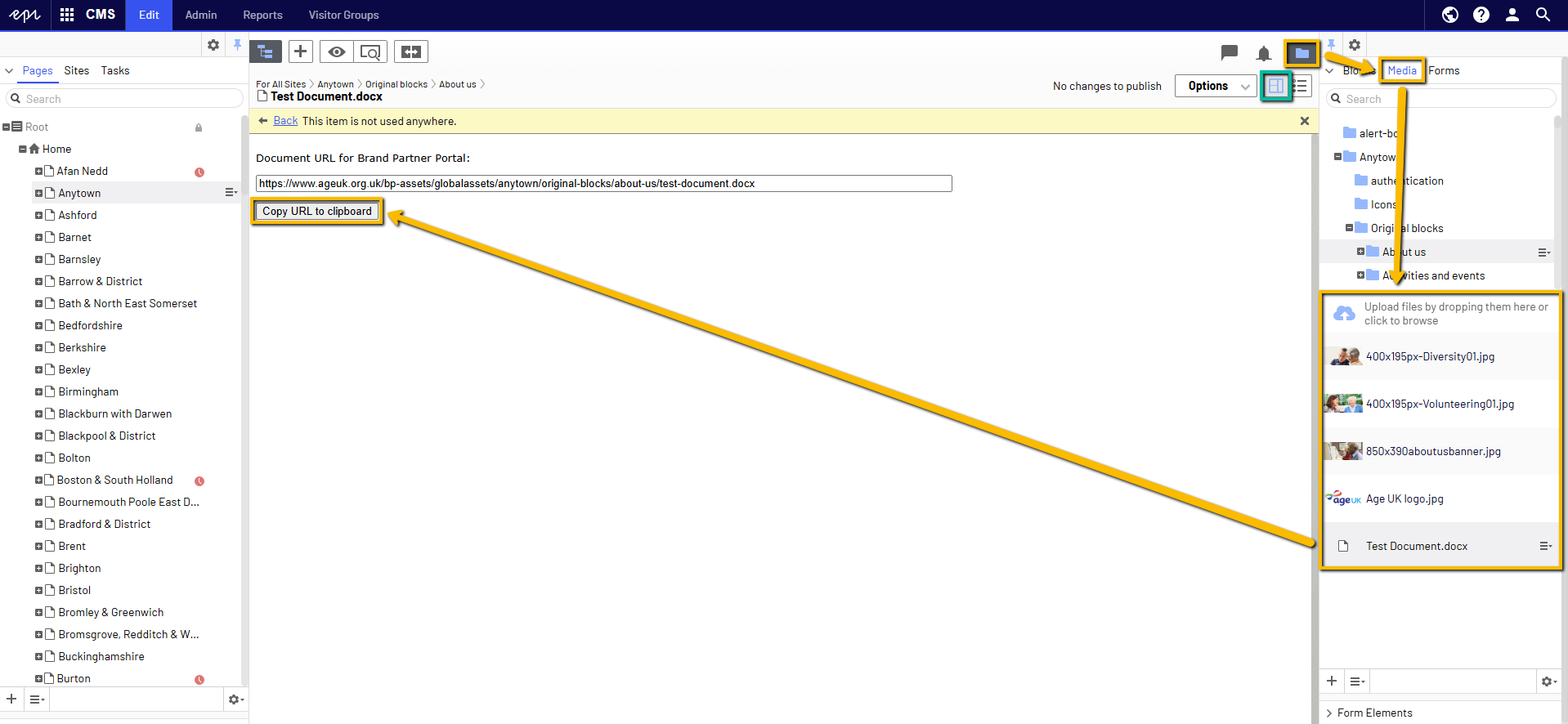
- Go to the Media Tab in the CMS
- Use the + signs to locate the desired Word Document that you just uploaded (you may have to do a bit of digging!)
- Once you have located it, double click the file, and the URL should pop up in the middle section
- If it doesn't, ensure that your viewing mode is set to "On-Page Editing" (highlighted in green next to the Options tab)
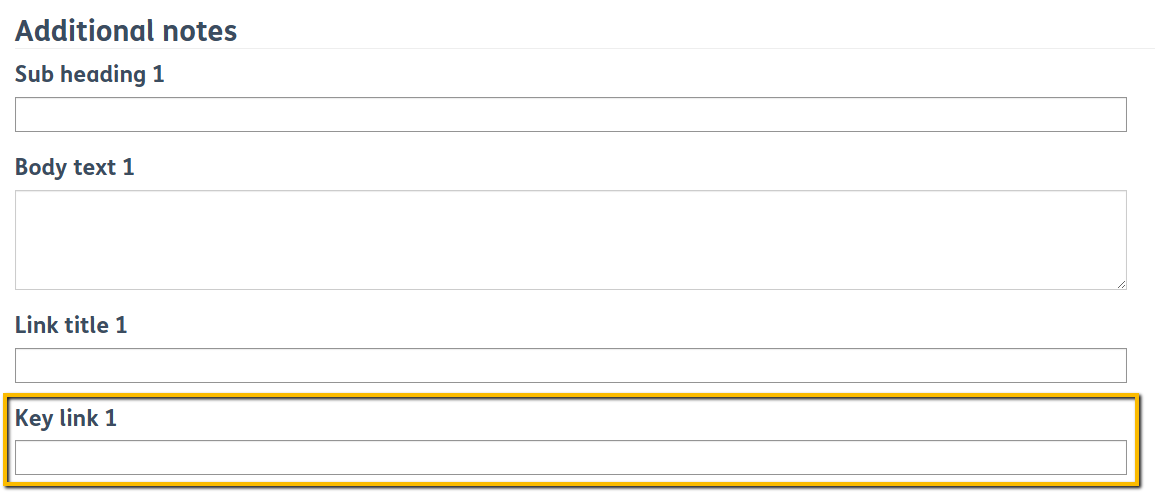
3. Once you have copied the Word Document's URL, paste it into your required Key Link section.
Tip: You can embed your document into some text (e.g. "Read some of our testimonials"). To do this, follow the guidance here.
4. Once you're happy with the content you've added, select one of the following:
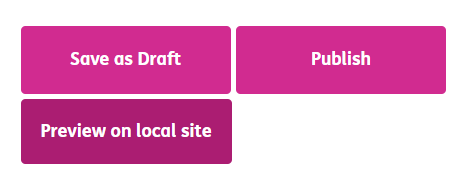
Save as Draft
Saves your Service but doesn't publish it anywhere i.e. it will not show up on either the Local Directory or your Local Age UK Website for the public to see.
Preview on Local Site
Saves your Service but only publishes it on your Local Age UK Website.
Publish
Saves your Service and publishes it on both the Local Directory and your Local Age UK Website
Please note: You may have to wait 15 - 30 minutes for your changes to display. If after this time they have not, please let us know.