CREATING A SERVICE
The Services you list on your Website should be kept up to date and, at a minimum, have information on:
WHO it's for
WHAT it is and any costs
WHEN it is (i.e. days and times in the week)
WHERE it's located
WHY it's beneficial
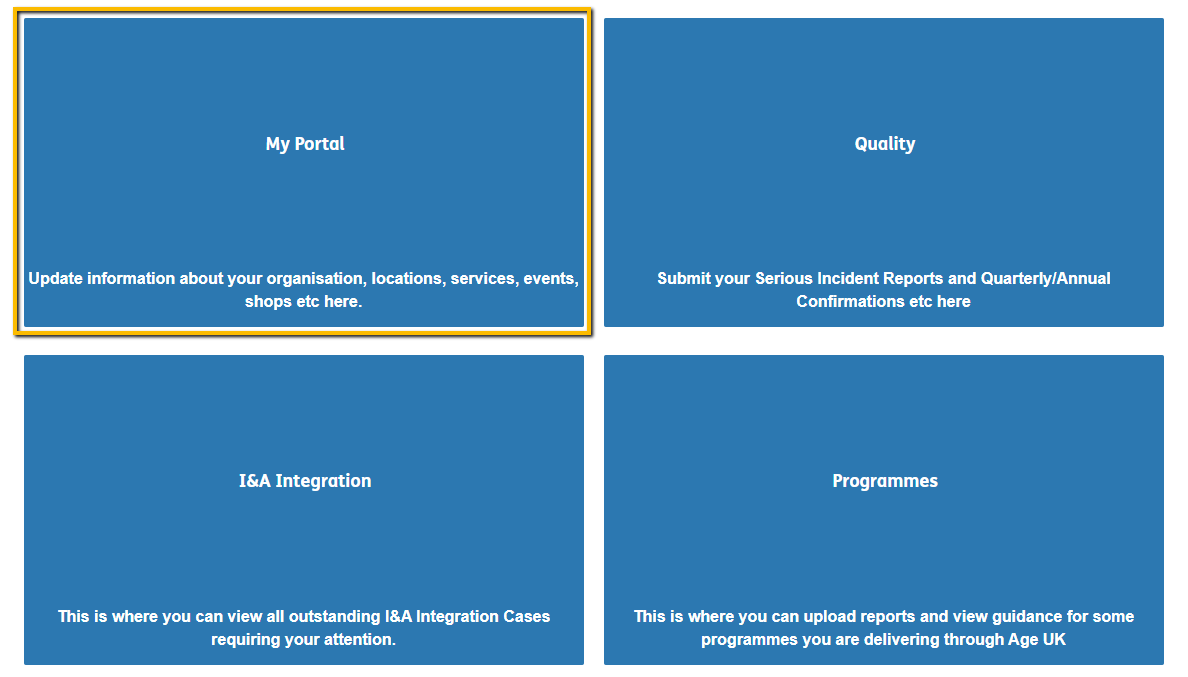
1. After signing in to the Portal, click on "My Portal"
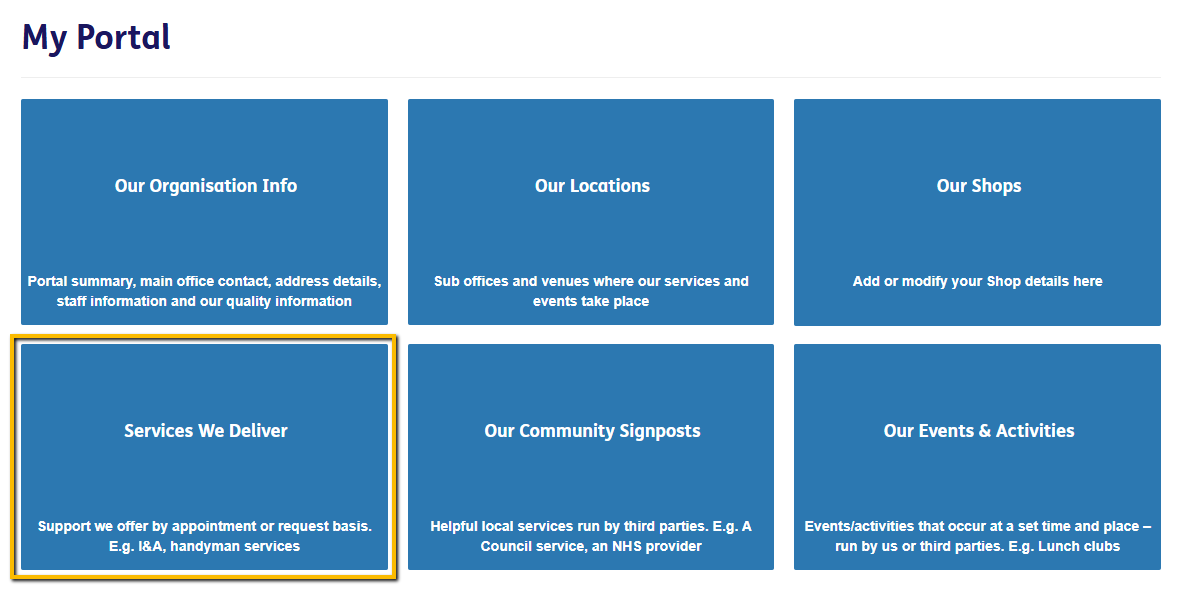
2. After this you will be presented with 6 tiles. Click "Services We Deliver"
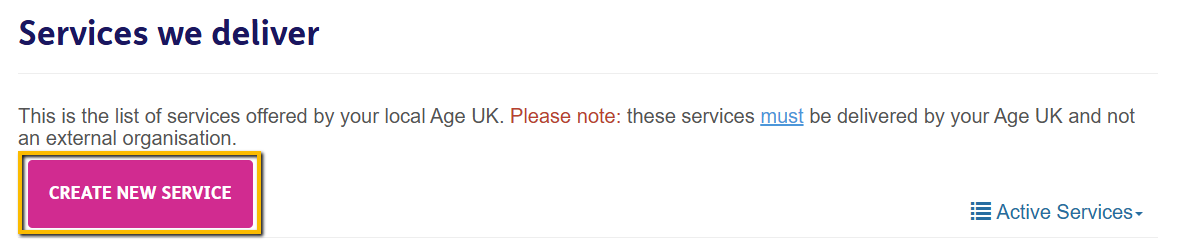
3. Select "Create New Service"
4. Add a title for your Service
We advise making the Service Title as self-explanatory as possible, i.e. don't use acronyms/names that mean something to your Organisation, but may mean nothing to the general public without context (e.g. "Happy Feet" or "COGS").
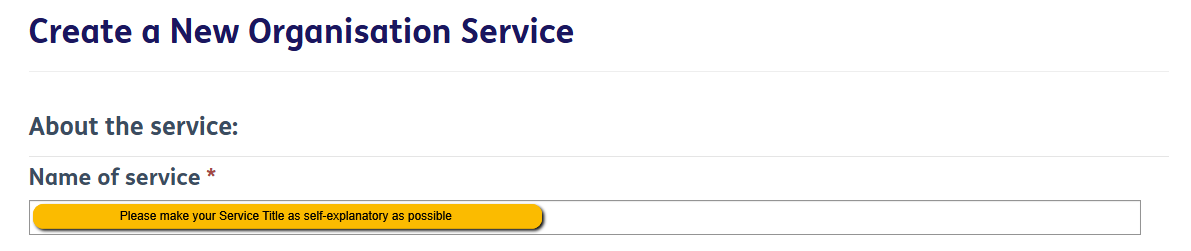
5. For "Is this Service Community based?"
If staff have to physically visit someone's home to deliver the Service, select "Yes".
By selecting "Yes", this will ensure that your Head Office address doesn't display to avoid users from turning up to your Head Office to receive the Service.
If the Service is at a set location (e.g. your Head Office, a Leisure Centre etc.), select "No".
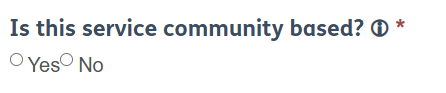
7. For "Where is this Service offered?" click the Magnifying Glass on the right-hand side.

8. Select the desired Location from the list of Locations you previously created.
If you haven't created the respective Location yet, follow the guidance here then return to this guide to continue.
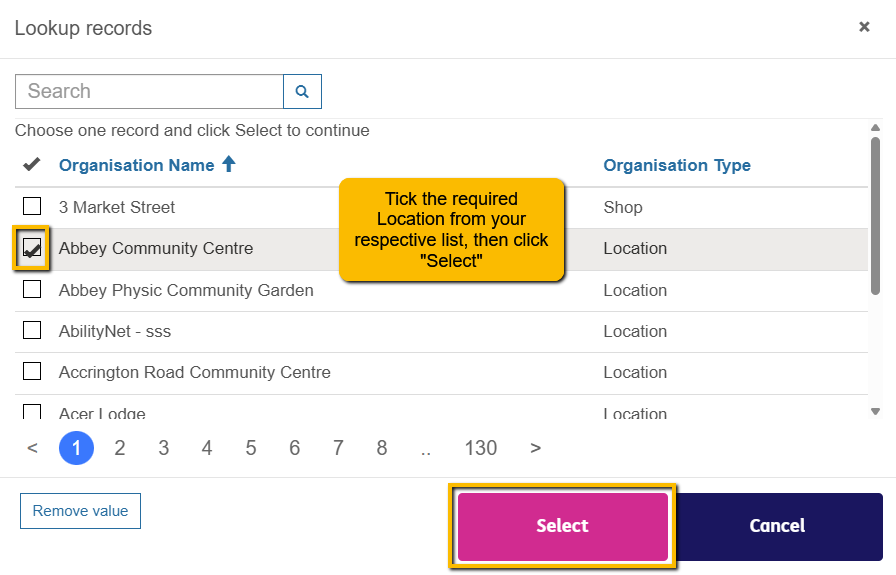
9. Fill out the following information.
Note: These fields are optional so if you don't have anything to add, you can leave any, or all, blank.
Contact Number
If a member of public has a question about this Service, what is the best number to contact?
Email Address
If a member of public has a question about this Service, or needs to submit documentation for it, what email address should they use?
Website
This field is strictly for external links (e.g. a Local Hospital).
10. Add a Thumbnail and Main Image for your Service
If you do not know how to add a Thumbnail and Main Image, follow our guidance here.

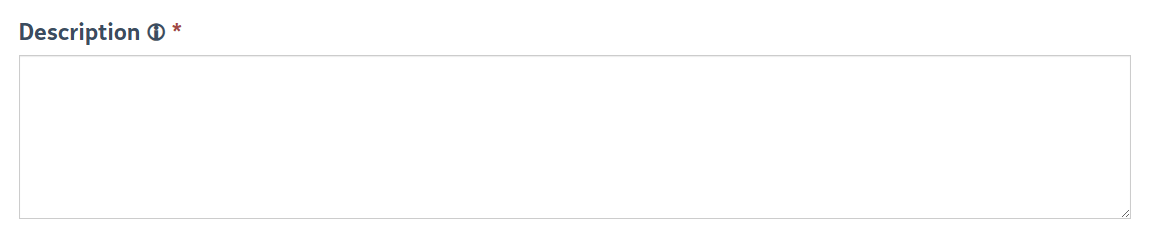
11. Give a brief description of your Service - we suggest a sentence or 2. You can provide more details on the next page.
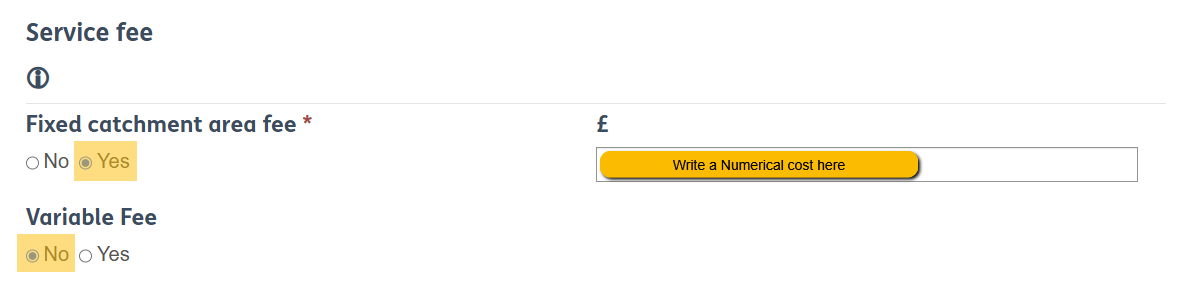
12. Provide Fee Details associated with your Service
If there is a fixed fee, select "Yes" for Fixed Catchment Area and write the numerical cost in the £ field, then "No" for Variable Fee.
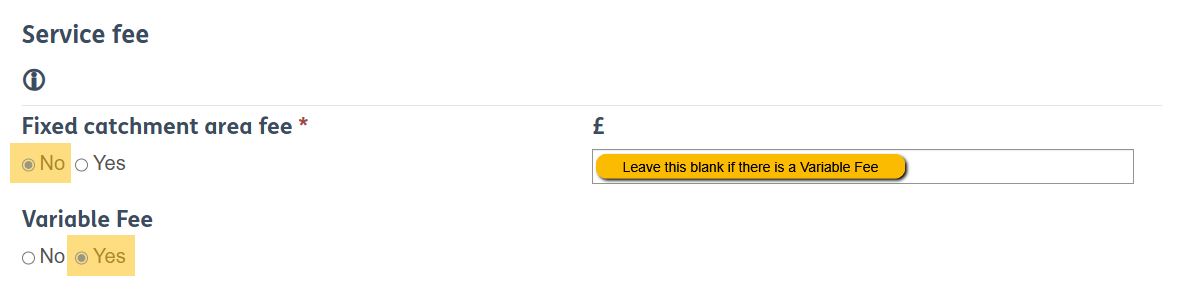
If the fee varies, select "No" for Fixed Catchment Area, then "Yes" for Variable Fee. This will ensure the Service displays as having a Variable Fee.
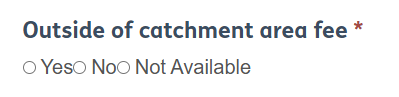
Outside of Catchment Area fee:
If you offer this Service outside of your Catchment Area and charge people outside of this area a fee, select "Yes"
If you offer this Service outside of your Catchment Area for free, select "No"
If this Service is only available within your Catchment Area select "Not available"
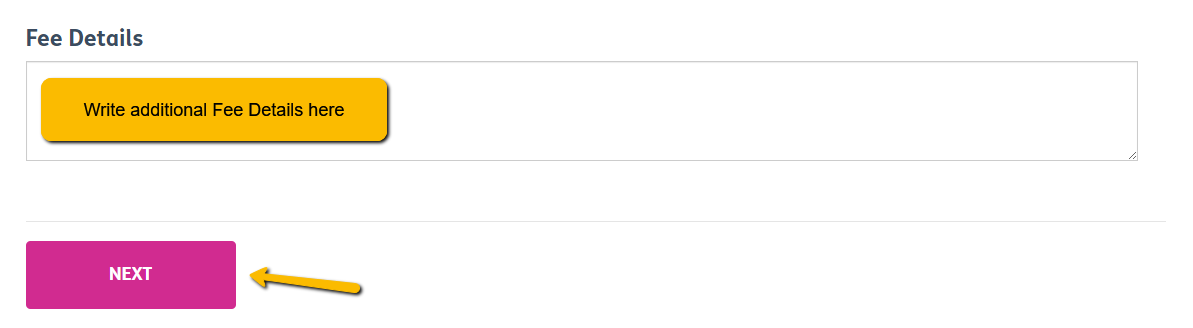
If you want to provide additional Fee Details (e.g. you offer a Handyperson Service and want to list the prices of different tasks), you can use this box.
When you have finished filling out this page, select "Next"
13. Fill out this section with detailed information about your Service.
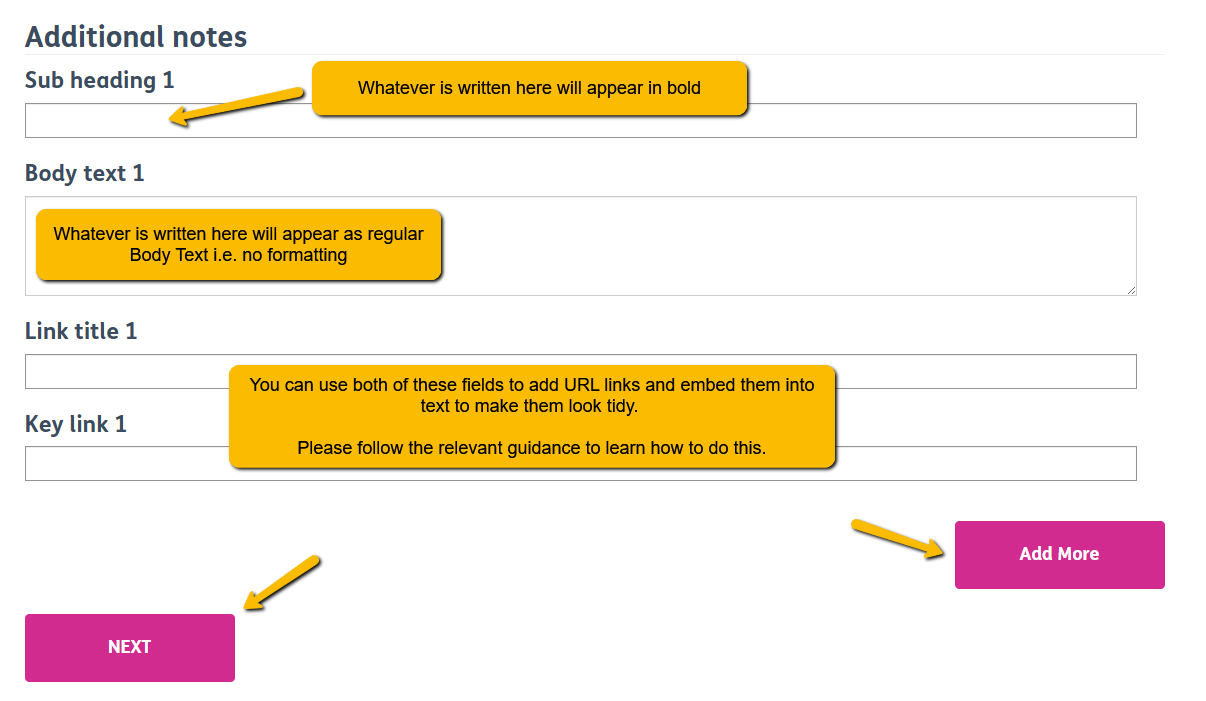
You can add up to 10 subheadings, body texts and URLs - just click "Add More" and more sections will appear.
Sub Heading
Whatever you write in the Sub Heading field will appear in bold. We suggest using subheadings to help split up your text e.g. "Who is this Service for?" , "What is [service name]?" etc.
Body Text
Use this box to give key details about your Service (usually in-line with what your Sub Heading is i.e. "Who is this Service for?" - you'd give information on who the target audience is for this Service.
Link Title and Key Link
You can link off to a URL if needed - this can be an external form (e.g. Microsoft Form), an Application Form (e.g. a Word Document) or an external Website (e.g. Local Council).
Guidance on:
Embedding a URL into text can be found here.
Uploading a Downloadable Word Document (e.g. an Application Form) can be found here.
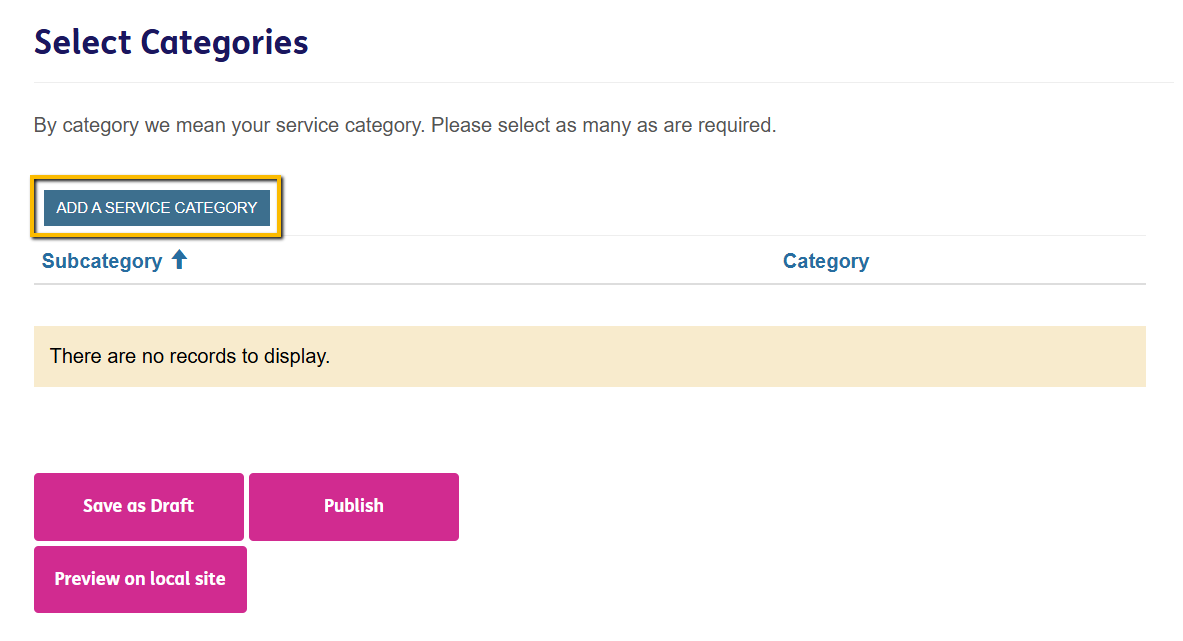
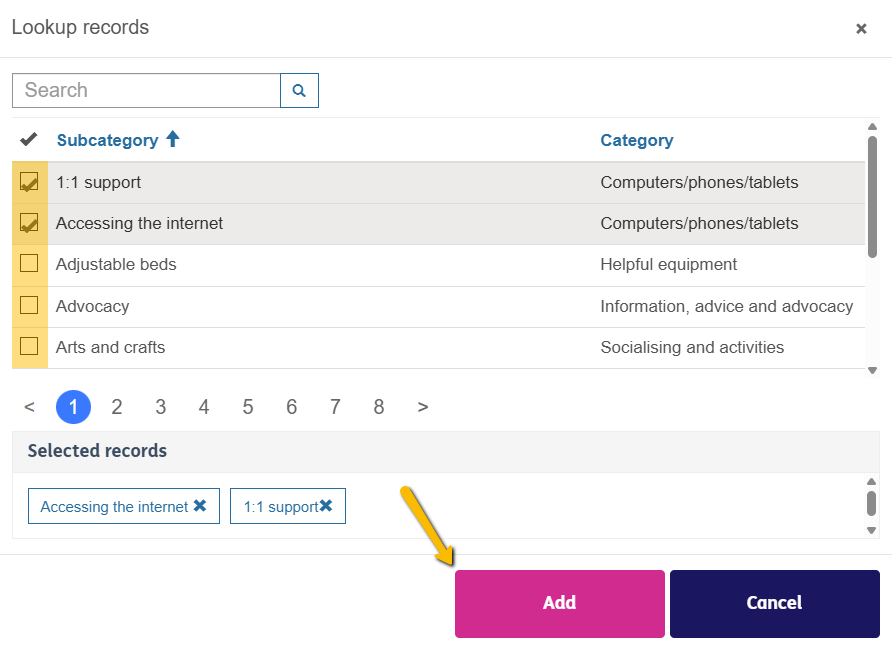
14. Tag your Service with the most relevant Categories
We suggest tagging your Service with the most relevant categories to ensure that the Service still displays if users use the search filtering capability i.e. they decide to only display Service relating to Physical Exercise.
If you can't find a Category, tag the most closely related category.
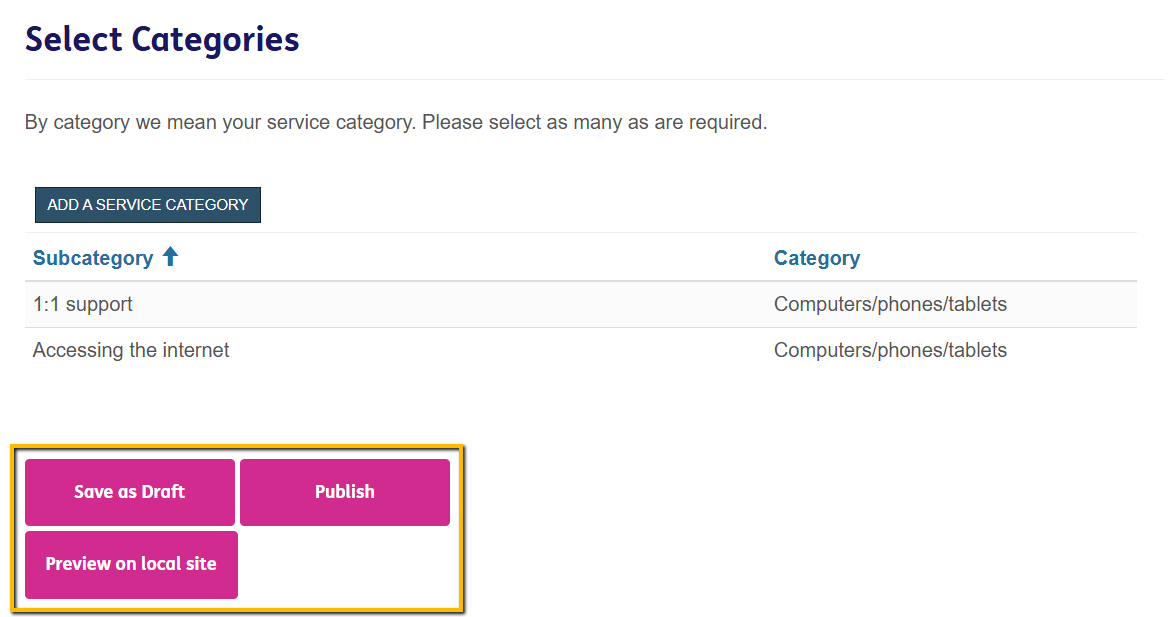
15. Once you're happy with the content you've added, select one of the following:
Save as Draft
Saves your Service but doesn't publish it anywhere i.e. it will not show up on either the Local Directory or your Local Age UK Website for the public to see.
Preview on Local Site
Saves your Service but only publishes it on your Local Age UK Website.
Publish
Saves your Service and publishes it on both the Local Directory and your Local Age UK Website
Please note: You may have to wait 15 - 30 minutes for your changes to display. If after this time they have not, please let us know.